


 |
||||||||||||||||||||||||||||
|
 |
Home |  |
|
|
Networking | |
|
|
Remote Access | |
|
|
Software | |
|
|
Security | |
|
|
Services | |
|
|
Support | |
|
|
|
|
|
|
|
|
|
|
|
|
|
|
|
|||||||||||||||
|
|
|
|
|
|
|
||||||||||||||||||||||
|
|
|
|
|
|
|
||||||||||||||||||||||
|
|
|
|||||||||||||||||||||||||||||||||||||||||||||||||||||||||||||||||||||||||||||||||||||||||||||||||||||||||||||||||||
|
|||||||||||||||||||||||||||||||||||||||||||||||||||||||||||||||||||||||||||||||||||||||||||||||||||||||||||||||||||||
|
|
|
|
|
|
|
|
|
|
| Configuring Open Transport PPP The following are instructions for configuring Open Transport to work with the Point-to-Point Protocol used for dialup connections with SUnet. To follow these instructions you should already have a Leland account, the necessary equipment, and Open Transport software installed on your Macintosh computer. |
||||
|
|
||||
 |
Configuring OT/PPP | |||
|
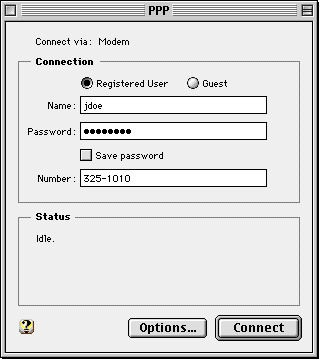
From the "Control Panels" option in the Apple menu, select the "PPP" control panel. NOTE: In System 8.5 and later, the "PPP" control panel is renamed "Remote Access". |
||||
 |
||||
| Select the "Registered User" radio button. For "Name" enter your SUNet (Leland system) user ID. For "Password" enter your SUNet ID's password.
Check the "Save Password" box if you don't wish to be prompted for it every time you dial in to the Stanford modem pool. For "Number", enter the number of Stanford's modem pool, 325-1010 (include a 1 and the area code 650 if you live in another area code; if you're dialing from on campus, you'll need to add a "9" as a prefix) in the box provided. If you are calling from a phone that has call waiting your PPP connection can be interrupted by an incoming phone call. To turn off call waiting, add a "*70," before the phone number, area code, and prefix. Close the control panel and save the changes. NOTE: Instead of closing the PPP control panel and moving on to the next control panels ("Modem" and "TCP/IP"), you can go to the "PPP" option in the menu bar and select "Modem" or "TCP/IP" to open those control panels. |
||||
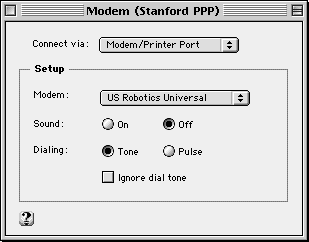
| From the "Control Panels" option in the Apple menu, select the "Modem" control panel. | ||||
 |
||||
| In the "Connect via" field, select the port your modem is connected to. Usually external modems are physically connected to the Modem Port on the back of the computer - select "Modem Port" for these. Powerbooks have a single port at the back of the computer ("Modem/Printer Port") for external modems. Powerbooks with internal modems use the "Internal Modem Port" for connections. The most modern Powerbooks (manufactured after 1994 or some 5xx series Powerbooks) can use PCMCIA card modems, credit card-sized devices, to connect. These devices will be listed in the "Connect via:" field by their names or their installed locations (ie "Upper PC slot" or "Lower PC slot").
From the "Modem" list, select your modem. If you cannot find your modem on the list, you can click on the question mark in the lower left corner of the Modem control panel for specific instructions. In most cases you will be directed to consult your user's manual and/or software that came with the modem. Many modems come with software that will update your list of modems in the control panel. Go to the modem manufacturer's Web site to download the appropriate software. A brief list of the most common modem manufacturer's sites includes Global Village modems, Zoom modems (look for the appropriate "CCL" files), US Robotics/3Com (Search for your modem type). You will be looking for modem software: "CCL" files, "script" files, etc. Check the "Sound" on/off according to your preference. For troubleshooting purposes, you may want to leave the "Sound" option "On" to get an audible indicator of your computer connecting to the modem. For most places in the Stanford area, select "Tone" Dialing. |
||||
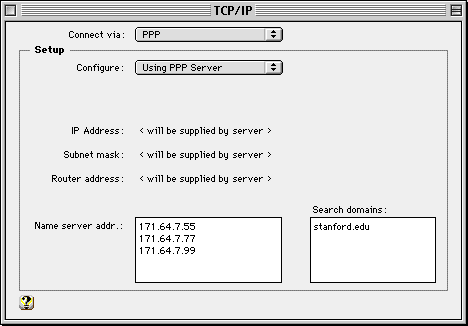
| From the Control Panels option in the Apple menu select the TCP/IP control panel. | ||||
 |
||||
| Set the "Connect via" option to "PPP".
The "Configure" option will automatically set itself to "Using PPP Server". Note that the "IP Address", "Subnet Mask" and "Router Address" fields now say "< will be supplied by server >". The PPP server will download this information to your Macintosh when you establish a connection. Confirm that the "Name server address" box has the IP addresses of Stanford's name servers. If not, enter the following addresses, each on a separate line: 171.64.7.55, 171.64.7.77 and 171.64.7.99. Confirm that the "Search domain" box has Stanford's domain listed. If not, enter "stanford.edu", without the quotes. Close the Control Panel and click on "Save" when asked. |
||||
|
Connecting to the PPP server | |||
Turn on your modem and make sure it is connected properly to your Macintosh. From the Control Panels option in the Apple menu select the PPP control panel. Click on the Connect button. You should hear modem tones (unless you selected silent operation) as your modem places the call. The status block will show PPP starting, authentication taking place and ending with the status of your PPP connection. At this point, the "Connect" button should turn into a "Disconnect" button. Should you choose to do so, closing the "PPP" control panel window will not disconnect your session. You can now use any of the software that depends on TCP/IP for its connectivity, i.e. Netscape Navigator, Eudora, Newswatcher, Fetch, etc. When you are finished with your session, close the network applications, return to the "PPP" control panel and click on the "Disconnect" button to gracefully terminate your session. |
||||
|
|
||||
|
Getting Additional Help | |||
If you have difficulty with any aspect of getting or using OT/PPP, your best source of help is Stanford's su.computers.dialin newsgroup, the main forum for the exchange of data about PPP and other areas of our dial-in service. You can use this newsgroup to ask and answer questions, tell others of useful solutions you have discovered, and find out about any new or upgraded services being offered. There are many different ways to read and post messages to the newsgroup. An alternate way to submit a query is to send electronic mail messages to su-computers-dialin@news.stanford.edu, which will forward your messages to the newsgroup. As always, include your electronic mail address so responses can, if you wish, be sent directly to you. You can also contact ITSS Customer Assistance via HelpSU for consulting help. Apple's Web site also contains helpful tips for troubleshooting Open Transport. For additional help, contact your dormitory's Resident Computer Coordinator (RCC) or your department's Local Network Administrator (LNA). |
||||
|
Last Updated: Friday, April 2, 1999 |
||||