


 |
||||||||||||||||||||||||||||
|
 |
Home |  |
|
|
Networking | |
|
|
Remote Access | |
|
|
Software | |
|
|
Security | |
|
|
Services | |
|
|
Support | |
|
|
|
|
|
|
|
|
|
|
|
|
|
|
|
|||||||||||||||
|
|
|
|
|
|
|
||||||||||||||||||||||
|
|
|
|
|
|
|
||||||||||||||||||||||
|
|
|
|||||||||||||||||||||||||||||||||||||||||||||||||||||||||||||||||||||||||||||||||||||||||||||||||||||||||||||||||||
|
|||||||||||||||||||||||||||||||||||||||||||||||||||||||||||||||||||||||||||||||||||||||||||||||||||||||||||||||||||||
|
|
|
|
|
|
|
|
|
|
| Configuring MacTCP This is the second half of the MacSLIP configuration procedures. You can obtain both MacTCP and MacSLIP from the MacStanford CD or MacStanford Web Library. You will need a SUNet ID (Leland account) in order to access this software. |
||||
|
|
||||
 |
Installing MacTCP | |||
If you used the MacStanford Library to download MacTCP, double-click the self-extracting archive to reveal the MacTCP 2.0.6 folder. Open the MacTCP 2.0.6 folder (either on the MacStanford CD, or from the folder you downloaded). Open the folder titled "MacTCP Control Panel" inside the MacTCP 2.0.6 folder and drag the "MacTCP" icon into your closed "System Folder" on your hard disk. You will be asked if MacSLIP should be put in the Control Panels folder. Click "OK". Drag the SLIP extension icon into your closed "System Folder". You will be asked if these items should be put in the Extensions folder. Click OK. Make a folder titled "MacSLIP Folder" (it must be spelled and capitalized exactly like this, but without the quotes) and put the files "MacSLIP Helper", and "Access-Path.script (PPP)" in it. If you use any other modem scripts, these should be placed in the folder as well. Drag this folder into your "Preferences" folder (which is in the "System Folder"). Restart your Macintosh. |
||||
|
Configuring MacTCP for MacSLIP |
|||
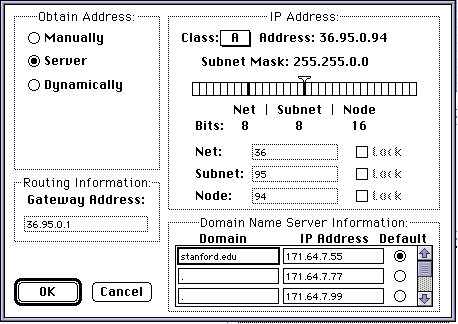
From the Apple Menu, select "Control Panels". Double-click on the MacTCP icon. When it opens, click on the "More" button to display MacTCP's configuration screen: |
||||
 |
||||
| MacTCP must be configured to obtain its IP address from the SLIP server via the Bootstrap Protocol (BootP).The correct settings are:
Obtain Address: Select "Server". Gateway Address: 0.0.0.0 is the correct Gateway. On the right side, under IP Address: Specify Class: A from the pull-down menu to the right of the word "Class:" Subnet Mask: 255.255.0.0 (move the triangle slider to the right if you must change this value) Net | Subnet | Node Bits will be 8, 8 and 16 after that change. Specify zero for "Net:", "Subnet:", and "Node:". Under the Domain Name Server Information: For "Domain:", specify stanford.edu (in the top left box, as shown above) IP Address: 171.64.7.55 -- 171.64.7.77 -- 171.64.7.99 (in the three boxes as shown above). Select 171.64.7.55 as the default name server. |
||||
| NOTE: If you have a protected copy of MacTCP (that does not allow you to change some or all of the above settings as instructed), there will be a small box labeled "Protected" with an X in it just below the Gateway Address box on the left; that would prevent you from making any changes. In that case, do the following:
Close the MacTCP Control Panel. Inside the MacTCP 2.0.6 folder on the MacStanford CD (or from the folder you downloaded), open the folder For Net Administrators and drag the MacTCP Admin icon onto your closed System Folder icon. You will be asked if MacTCP Admin should be put into the Control Panels folder; click "OK". From the Apple menu, open the "Control Panels" and double-click on MacTCP Admin. In the MacTCP Admin window, click on "More" to get to the configuration page of MacTCP Admin; uncheck the "Protected" box; click on "OK" to close the configuration page. Close the MacTCP Admin Control Panel and drag the MacTCP Admin icon from the Control Panels folder to the Trash. Now you will be able to make the necessary changes by re-opening MacTCP. You may need to restart your Macintosh before any changes to the MacTCP Control Panel can take effect. |
||||
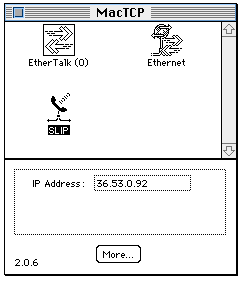
Restart the computer. Open MacTCP from the "Control Panels" in the Apple menu. |
||||
 |
||||
| If the SLIP icon is already selected, continue below. If the SLIP icon is not selected when you open the MacTCP Control Panel, select it and restart your Macintosh. |
||||
|
Using MacSLIP | |||
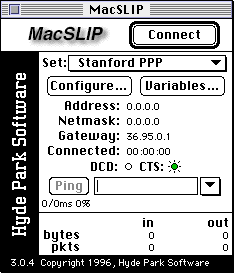
Open the MacSLIP Control Panel. |
||||
 |
||||
| If everything is properly configured, you will see the Connect button, as shown. If, however, you see a grayed-out "No SLIP" instead, make sure that SLIP has been selected in the MacTCP Control Panel.
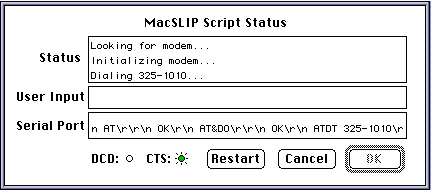
Click on the Connect button. After clicking on the Connect button, you will see the Script Status box: |
||||
 |
||||
| This Status box displays network traffic when a request for a connection is sent to the PPP server's modems. When a connection is made the Status box will close automatically.
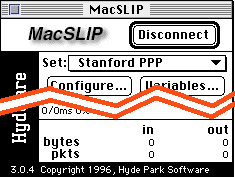
Upon successful completion of your PPP connection, the MacSLIP Control Panel will display a Disconnect message in place of Connect. You are now ready to launch the IP communications program of your choice: Eudora, MacSamson, Navigator, etc. A note to MacSamson users: Remember to open a New Telnet Session, not a New Serial (Modem) Session. |
||||
 |
||||
| To terminate your PPP connection, first close all applications that use TCP/IP then click on the "Disconnect" button. |
||||
|
Getting Additional Help | |||
If you have difficulty with any aspect of getting or using OT/PPP, your best source of help is Stanford's su.computers.dialin newsgroup, the main forum for the exchange of data about PPP and other areas of our dial-in service. You can use this newsgroup to ask and answer questions, tell others of useful solutions you have discovered, and find out about any new or upgraded services being offered. There are many different ways to read and post messages to the newsgroup. An alternate way to submit a query is to send electronic mail messages to su-computers-dialin@news.stanford.edu, which will forward your messages to the newsgroup. As always, include your electronic mail address so responses can, if you wish, be sent directly to you. You can also contact ITSS Customer Assistance via HelpSU for consulting help. Apple's Web site also contains helpful tips for troubleshooting Open Transport. For additional help, contact your dormitory's Resident Computer Coordinator (RCC) or your department's Local Network Administrator (LNA). |
||||
|
Last Updated: Friday, April 2, 1999 |
||||