|
||||||||||||||||||||||||||||
|
 |
Home |  |
|
|
Networking | |
|
|
Remote Access | |
|
|
Software | |
|
|
Security | |
|
|
Services | |
|
|
Support | |
|
|
|
|
|
|
|
|
|
|
|
|
|
|
|
|||||||||||||||
|
|
|
|
|
|
|
||||||||||||||||||||||
|
|
|
|
|
|
|
||||||||||||||||||||||
|
|
|
|||||||||||||||||||||||||||||||||||||||||||||||||||||||||||||||||||||||||||||||||||||||||||||||||||||||||||||||||||
|
|||||||||||||||||||||||||||||||||||||||||||||||||||||||||||||||||||||||||||||||||||||||||||||||||||||||||||||||||||||
|
|
|
|
|
|
|
|
|
|
| Configuring MacSLIP The following are instructions for configuring MacSLIP to work with dialup connections with SUNet. To follow these instructions you should already have a Leland account, the necessary equipment, and MacSLIP software present on your Macintosh computer. After configuring MacSLIP, select the link at the bottom of the page for instructions about configuring MacTCP, the other half of MacSLIP. MacSLIP will not work unless MacTCP is also configured properly. You can obtain both MacTCP and MacSLIP from the MacStanford CD or MacStanford Web Library. You will need a SUNet ID (Leland account) in order to access this software. |
||||
|
|
||||
 |
Installing MacSLIP on Your Macintosh | |||
Open the MacSLIPv3.0.4 folder (either on the MacStanford CD, or from the folder you downloaded). Drag the "MacSLIP" icon into your closed "System Folder" on your hard disk. You will be asked if MacSLIP should be put in the Control Panels folder. Click OK. Drag the SLIP extension icon into your closed "System Folder". You will be asked if these items should be put in the Extensions folder. Click OK. Make a folder titled "MacSLIP Folder" (it must be spelled and capitalized exactly like this, but without the quotes) and put the files "MacSLIP Helper", and "Access-Path.script (PPP)" in it. If you use any other modem scripts, these should be placed in the folder as well. Drag this folder into your "Preferences" folder (which is in the "System Folder"). Restart your Macintosh. |
||||
|
Configuring MacSLIP |
|||
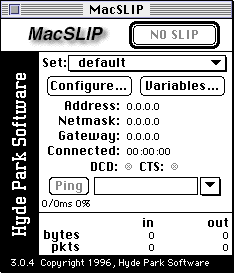
Select MacSLIP from the "Control Panels" option under the Apple menu. |
||||
 |
||||
| Click on the "Configure..." button. | ||||
 |
||||
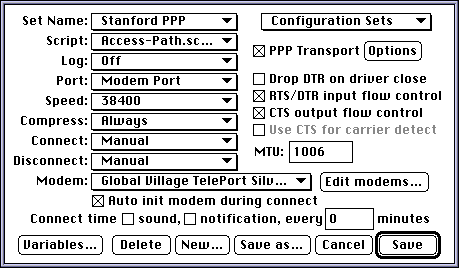
| Enter information for Script, Speed, Variables, and Modem as follows:
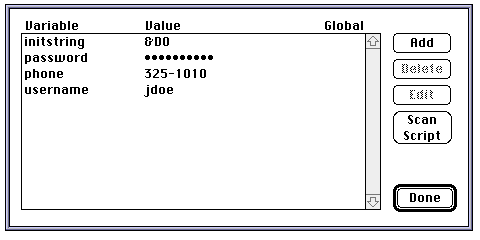
Script: Important: you should use the script "Access-Path.script(PPP)". The file "Access-Path.script(PPP)" is located in the "MacSLIP folder" within the "Preferences" folder inside the "System Folder". Identify the location of this file by selecting the drop-down menu to the left of the "Script:" option and selecting the "Set" item from the list. Speed: Set the "Speed:" option to the speed of your modem. You should select a number that is comparable to your modem's speed but greater than your modem's speed (i.e., for a 14,400 modem, select 19,200). Selecting a speed much faster than your modem may result in failure to establish a connection. If you have a 56K modem, set the speed to 57,600. Experiment with different settings to determiner the one that works best for your modem. PPP Transport: You must set "PPP Transport" to ON, marking it with an X. Variables: Click on the "Variables..." button. Enter the value to be included in the logon script for each variable, as detailed below. (The values shown in the figure below are examples.) |
||||
 |
||||
|
|
Entering Data:
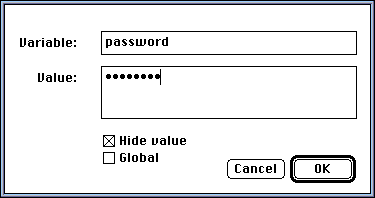
To enter the data, click on a variable (initstring, password, phone, username): choose Add for a new entry or Edit to modify an existing entry. A new window appears where you can enter or edit the "Variable:" name (initstring, password, phone, or username) and a corresponding "Value:". |
|||
|
|
 |
|||
|
|
You can choose to hide your data for security purposes by clicking on the Hide Value box on the Edit page.
Click on the "OK" button after entering the correct value for each variable. |
|||
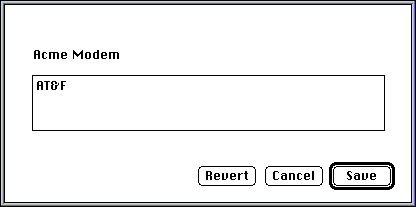
Initstring: Enter &D0 (that last character is a zero). If you wish to write your own initstring for a modem type not listed, refer to the section on Configuring Your Modem in the MacSLIP 3.0 manual (from the folder MacSLIP:Documentation, as shown in Figure 1). This document is in the form of a self-starting application: you can read it electronically or print it. Note: You will still need to include &D0 in the initstring. Password: use the password for your SUNet ID. Phone number: from off campus, enter 325-1010 or 1-650- 325-1010; from a campus phone, enter 9-325-1010. Username: your SUNet ID. When you are finished, click on the "Done" button.
|
||||
| Modem: Select your modem from the drop-down list of modems. If you are using an internal modem, such as the Apple Express or Geoport, use the drop-down list corresponding to "Port:" to select internal modem instead of the "External Port". Users of internal modems should not check the "RTS/DTR input flow control" or the "CTS output flow control" options because these control signals are not recognized by internal modems. |
||||
|
|
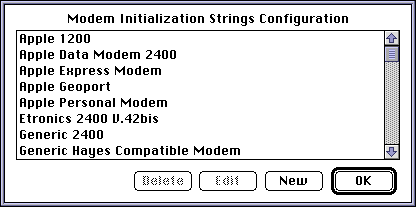
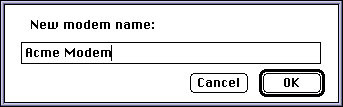
OPTIONAL: If you do not see your external modem in the drop-down list of modems, then you should add yours to the list:
Click on the "Edit modems..." button:
|
|||
Choose "Save as..." on MacSLIP's main Configure screen and name your new configuration (choose something like Stanford PPP). MacSLIP is now configured and ready to connect to the Stanford service. Continue at this link to configure MacTCP, the second component of Remote Access software. |
||||
|
Last Updated: Friday, April 2, 1999 |
||||