


 |
||||||||||||||||||||||||||||
|
 |
Home |  |
|
|
Networking | |
|
|
Remote Access | |
|
|
Software | |
|
|
Security | |
|
|
Services | |
|
|
Support | |
|
|
|
|
|
|
|
|
|
|
|
|
|
|
|
|||||||||||||||
|
|
|
|
|
|
|
||||||||||||||||||||||
|
|
|
|
|
|
|
||||||||||||||||||||||
|
|
|
|||||||||||||||||||||||||||||||||||||||||||||||||||||||||||||||||||||||||||||||||||||||||||||||||||||||||||||||||||
|
|||||||||||||||||||||||||||||||||||||||||||||||||||||||||||||||||||||||||||||||||||||||||||||||||||||||||||||||||||||
|
|
|
|
|
|
|
|
|
|
| How to Configuring Macintosh Eudora to Filter Mail Eudora can filter your mail for you automatically, routing mail by subject, "from" address, or recipient address into configurable mailboxes of your choosing. For instance, you may want to move mail sent to your Leland email address into an inbox separate from your CMGM account inbox (instructions for configuring Eudora to read email from secondary accounts are located here). |
||||
|
|
||||
 |
Setting Up Filters | |||
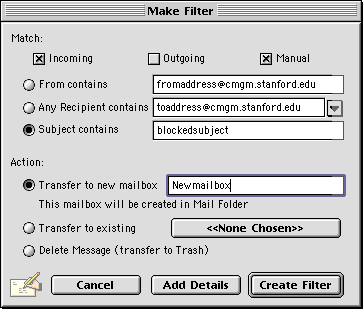
Open Eudora the way you normally would to view your email. Select "Make Filter" from the "Special" menu in Eudora. A window with the following options will appear: |
||||
 |
||||
The checkboxes across the top specify which messages the filter will apply to. The "Incoming" checkbox, if left checked (enabled), will make Eudora filter messages as they are retrieved from the server. The "Manual" checkbox, when enabled, instructs Eudora to filter messages only when you specifically tell it to. I usually leave this option enabled. Otherwise, if Eudora filters incoming messages, the new messages will be moved to folders other than the "Inbox", where I am accustomed to seeing new mail. Outgoing filters only apply to email you send, forward, or reply to. You can tell Eudora to filter mail by sender address, recipient address, or subject. Specify the "Subject" or "From contains" fields and specify the folder to transfer the qualifying email to under the "Action:" section of the window. You can transfer messages to a new mailbox, to an existing mailbox, or directly to the trash, unread. It's a good idea to give a complete email address in the "From contains" field. If you specify something like "cmgm.stanford.edu" in the "From contains" field, everyone who sends you email from their CMGM account will be filtered to a folder of your choice. To filter your Leland messages, set the "Any Recipient contains" field to your Leland email address. Note that the Filters do not have any boolean capabilities; that is, you cannot specify within this single window for Eudora to filter messages from "someone" with this "subject" (either filter by "someone" or by "subject"). |
||||
|
Using the Filters | |||
Next time you check your email, you can move the filtered messages by selecting "Filter Messages" from the "Special" menu. If you've left the "Manual" checkbox empty (disabled), Eudora will automatically move qualifying messages to |
||||
|
Eudora for Power Users | |||
Eudora's multiple mailbox features are the most powerful of any email client available. If you have additional questions or needs regarding multiple mailbox configuration, email me at raphaelf@cmgm. |
||||
|
Last Updated: Tuesday, February 17, 1999 |
||||