


 |
||||||||||||||||||||||||||||
|
 |
Home |  |
|
|
Networking | |
|
|
Remote Access | |
|
|
Software | |
|
|
Security | |
|
|
Services | |
|
|
Support | |
|
|
|
|
|
|
|
|
|
|
|
|
|
|
|
|||||||||||||||
|
|
|
|
|
|
|
||||||||||||||||||||||
|
|
|
|
|
|
|
||||||||||||||||||||||
|
|
|
|||||||||||||||||||||||||||||||||||||||||||||||||||||||||||||||||||||||||||||||||||||||||||||||||||||||||||||||||||
|
|||||||||||||||||||||||||||||||||||||||||||||||||||||||||||||||||||||||||||||||||||||||||||||||||||||||||||||||||||||
|
|
|
|
|
|
|
|
|
|
| Securing Password Transfers for Reading Email in Eudora These pages describe how to configure Eudora for Kerberized connections. You should already have installed and configured MacLeland and MacSamson, and created a .klogin file in your CMGM account for Kerberized connections. PCSamson is Stanford's own Kerberized telnet client (for logging in to CMGM, using PINE, ELM, or other telnet applications). PCLeland is a Stanford-specific program to Kerberize password connections. Instructions for configuring and installing Eudora are available here. |
||||
|
|
||||
 |
Open Eudora and View Eudora Settings | |||
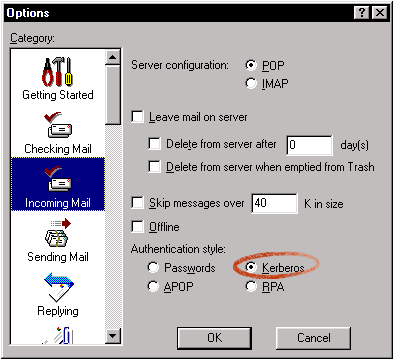
Open your Eudora file and select "Options" from the "Tools" menu. Select the "Checking Mail" icon from the left side of the Settings window: |
||||
 |
||||
| Towards the bottom of the window, select the radio button next to the word "Kerberos" for the authentication field (as in the picture above).
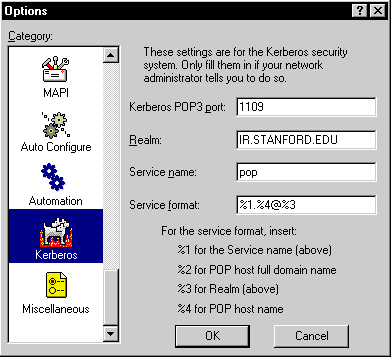
Next, scroll down the settings options (left hand side) until you see "Kerberos". Click on "Kerberos" once to select it. |
||||
 |
||||
| Verify that you Eudora Kerberos Settings look exactly the same as in the screenshot above. Note "IR.STANFORD.EDU" should be in all-caps.
Eudora is now ready for Kerberos authentication. |
||||
|
Using PC-Leland | |||
How to use PC-Leland. |
||||
|
Last Updated: Friday, April 2, 1999 |
||||